How to Run LLMs Locally: Complete Beginner's Guide (2026)
Step-by-step guide to running large language models on your own computer. Covers Ollama, LM Studio, llama.cpp, and vLLM — with setup instructions, model recommendations, and performance tuning for NVIDIA, AMD, and Apple Silicon hardware.
What does "running an LLM locally" actually mean?
When you use ChatGPT, Claude, or Gemini, your prompts travel to a data center where massive GPU clusters process your request and send back the response. You pay per token, your data leaves your machine, and you're dependent on someone else's servers.
Running an LLM locally means downloading an AI model's weights to your computer and performing all inference on your own hardware — your GPU, your CPU, your RAM. Nothing leaves your machine. There's no API key, no usage limit, no monthly bill, and no privacy concerns. Once the model is downloaded, you can disconnect from the internet entirely and it still works.
In March 2026, local models like Llama 4 Scout and DeepSeek-R1 distills approach the quality of premium cloud models for many tasks. The setup takes 5-10 minutes. Here's how to get started.
Check your hardware: what can your computer run?
Before installing anything, figure out what your system can handle. Open your system info and check these three things:
1. GPU and VRAM
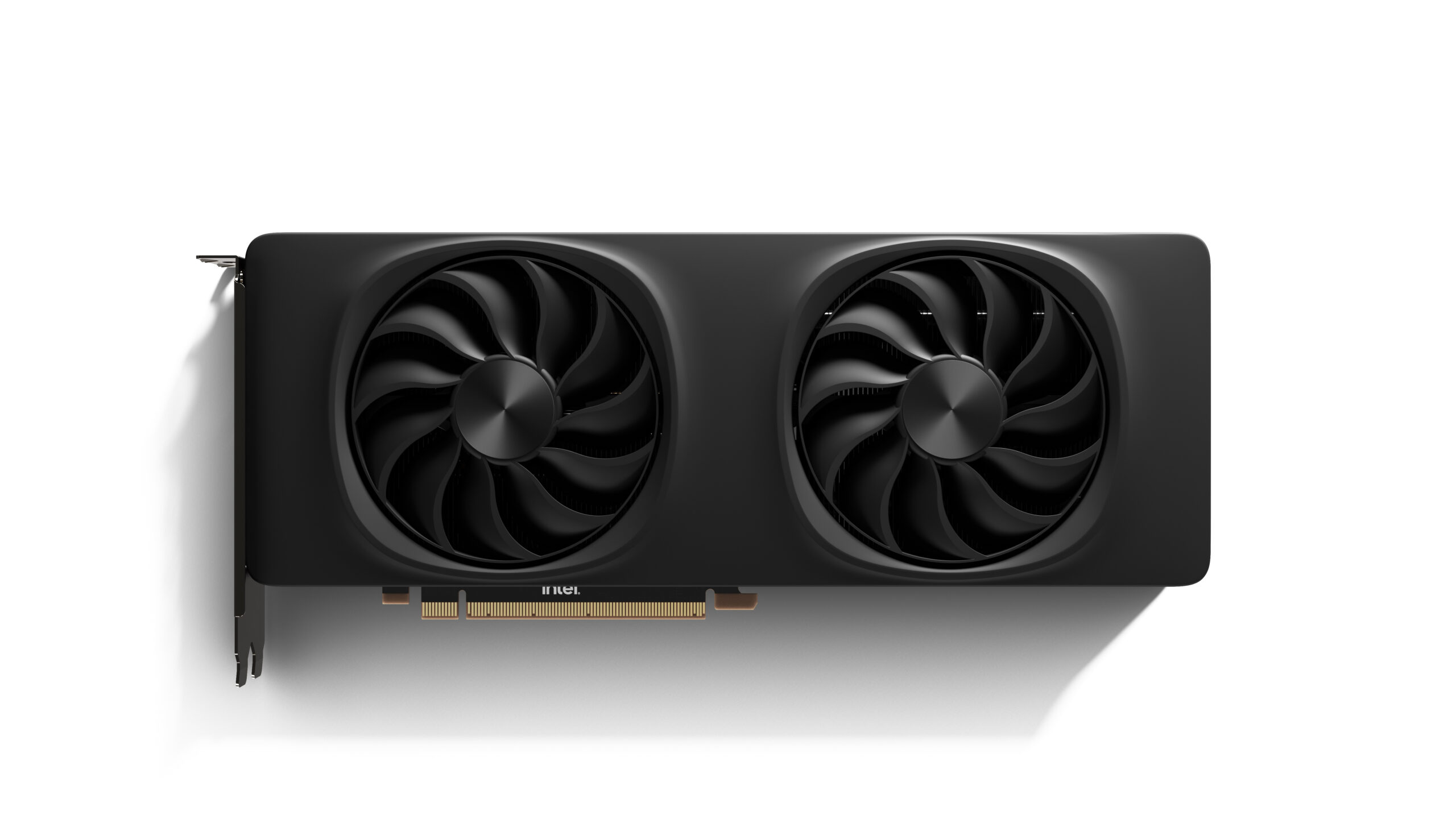
Your GPU's VRAM is the most important spec. On Windows, open Task Manager → Performance → GPU to see your VRAM. On Mac, go to Apple menu → About This Mac to see your unified memory.
| Your VRAM / Memory | Largest Model You Can Run | Example GPUs |
|---|---|---|
| 4-6 GB | 3-7B parameters | RTX 3060, GTX 1660, RX 6600 |
| 8 GB | 7-8B parameters | RTX 4060, RX 7600, Arc B580 |
| 12 GB | 13B parameters | RTX 4070, RTX 3060 12GB |
| 16 GB | 27-30B parameters | RTX 5070 Ti, RTX 5080, RX 9070 XT |
| 24 GB | 30B+ or MoE 100B+ | RTX 3090, RTX 4090 |
| 32 GB | 70B at Q4 | RTX 5090 |
| 48-128 GB (Apple) | 30-70B+ | M4 Pro, M4 Max, M5 Max |
2. System RAM
You need enough system RAM for the operating system plus any model layers that don't fit on the GPU. Minimum 16GB for small models, 32GB recommended, 64GB+ if you plan to do CPU offloading of large models.
3. Storage
Models are large files. A 7B model at Q4 is ~4GB. A 70B model at Q4 is ~40GB. You'll want at least 50-100GB of free SSD space to store a few models. An NVMe SSD loads models significantly faster than a SATA drive.
Method 1: Ollama (recommended for most users)
Ollama is the fastest way to get started. It's a command-line tool that handles model downloading, quantization, GPU detection, and API serving in one package. Works on Windows, macOS, and Linux.
Installation
Download from ollama.com and run the installer. On macOS, you can also use brew install ollama. On Linux: curl -fsSL https://ollama.com/install.sh | sh. That's it — no Python, no dependencies, no configuration.
Running your first model
Open a terminal and run:
ollama pull llama3.3
This downloads the Llama 3.3 8B model (~4.7GB at Q4_K_M). Once downloaded:
ollama run llama3.3
You're now chatting with a local AI. Type your message and press Enter. To exit, type /bye.
Best models to start with
ollama pull llama3.3— best general-purpose 8B modelollama pull deepseek-r1:14b— best reasoning model for 16GB GPUsollama pull gemma3:27b— best multimodal model (understands images)ollama pull llama4-scout— best overall, needs 24GB+ GPUollama pull qwen3-coder:8b— best for coding assistance
Ollama as an API server
Ollama automatically serves an OpenAI-compatible API on localhost:11434. Any application that supports the OpenAI API can connect to Ollama by pointing the base URL to http://localhost:11434/v1. This includes coding assistants like Continue.dev, web UIs like Open WebUI, and custom applications.
Method 2: LM Studio (best GUI experience)
LM Studio is a desktop application with a visual interface for browsing, downloading, and chatting with models. If you prefer clicking buttons over typing commands, this is your tool.
Why choose LM Studio over Ollama
- Visual model browser — search and download models from Hugging Face without leaving the app
- Parameter tuning UI — adjust temperature, top-p, repetition penalty, and context length with sliders
- Better on integrated GPUs — LM Studio's Vulkan backend often outperforms Ollama on Intel/AMD integrated graphics and Apple Silicon
- Headless server mode — run as a background service with API access, similar to Ollama but with a GUI for monitoring
Setup
Download LM Studio from lmstudio.ai. Install and launch. Click "Discover" to browse models. Search for a model (e.g., "Llama 3.3 8B GGUF"), click Download, and once it's finished, click "Chat" to start talking. LM Studio auto-selects the best quantization for your hardware.
LM Studio is especially popular among users on Macs — its Apple Silicon optimizations make it the smoothest GUI experience for M-series chips.
Method 3: llama.cpp (maximum performance and control)
llama.cpp is the engine under the hood of both Ollama and LM Studio. If you want maximum control over your setup — custom quantization, precise layer offloading, batch processing, or embedding generation — running llama.cpp directly gives you the most flexibility.
When to use llama.cpp directly
- You need to control exactly how many GPU layers are offloaded versus kept on CPU
- You're running on unusual hardware (ARM boards, Raspberry Pi, old GPUs)
- You want to serve models to a team with llama.cpp's built-in HTTP server
- You need speculative decoding, grammar-constrained generation, or other advanced features
Key specs
The entire binary is under 90MB. It has zero external dependencies. It supports NVIDIA CUDA, AMD ROCm, Intel SYCL, Apple Metal, Vulkan, and pure CPU inference. It runs on everything from a Raspberry Pi to a data center GPU. In 2026, llama.cpp remains the most portable and hardware-flexible way to run AI models.
Method 4: vLLM (for serving models to a team)
If you need to serve a model to multiple users — a team of developers sharing a coding assistant, or a self-hosted ChatGPT alternative — vLLM is the production-grade solution.
Why vLLM for multi-user serving
vLLM uses PagedAttention, which manages GPU memory like an operating system manages RAM — allocating and freeing memory in pages rather than requiring contiguous blocks. This reduces VRAM waste by 50%+ and enables continuous batching of requests. The result: vLLM achieves 793 tokens per second in multi-user benchmarks compared to Ollama's 41 tok/s — a 19x throughput advantage.
vLLM also supports tensor parallelism (splitting one model across multiple GPUs), speculative decoding (using a small draft model to accelerate a large model), and AWQ/GPTQ quantization for production deployments.
When NOT to use vLLM
For single-user inference on a personal PC, vLLM is overkill. Its setup requires Python, CUDA toolkit, and more configuration than Ollama. Stick with Ollama or LM Studio for personal use; reserve vLLM for team or production deployments.
Performance tuning: getting the best speed from your hardware
Once you have a model running, these tips will maximize your tokens per second:
GPU layer offloading
If your model is too large for GPU VRAM, Ollama automatically splits layers between GPU and CPU. You can control this manually with --gpu-layers in llama.cpp. More layers on GPU = faster, but going over your VRAM limit causes crashes or severe slowdowns. The sweet spot is loading as many layers as fit with ~500MB VRAM headroom.
Context length trade-off
Larger context windows use more VRAM. A model running at 4096 context uses significantly less VRAM than the same model at 32768 context. If you're running a model near your VRAM limit, reducing context length from 32K to 8K can free up 2-4GB — enough to bump up quantization quality or fit a larger model.
Quantization quality vs speed
Q4_K_M is the default for good reason — it balances quality and speed. But if you have VRAM to spare, stepping up to Q5_K_M or Q6_K gives noticeably better output quality for creative and reasoning tasks, with only a 5-10% speed reduction. Conversely, if you need to squeeze a model onto limited VRAM, Q3_K_M trades some quality for a significant size reduction.
Batch size for throughput
If you're processing multiple prompts (batch jobs, RAG pipelines, automated testing), increase the batch size. Ollama defaults to batch size 512; vLLM handles dynamic batching automatically. Larger batches improve GPU utilization and throughput at the cost of higher latency per individual request.
Frequently Asked Questions
How do I run an AI model on my own computer?
The easiest way is to install Ollama (free, works on Windows/Mac/Linux). Open a terminal, run "ollama pull llama3.3" to download a model (~4.7GB), then "ollama run llama3.3" to start chatting. It auto-detects your GPU and handles everything. The whole process takes 5-10 minutes including download time.
What is the easiest way to run LLMs locally?
Ollama is the easiest — one command to install, one command to download a model, one command to run it. For a visual interface instead of command line, use LM Studio, which provides a desktop app with model browsing and a chat UI. Both are free and work on Windows, macOS, and Linux.
Can I run AI locally without a GPU?
Yes. llama.cpp and Ollama both support CPU-only inference. With 16GB+ RAM and a modern CPU (Ryzen 7000+, Intel 12th gen+), you can run 7-8B models at 10-20 tokens per second — usable for chat and writing. Apple Silicon Macs use their integrated GPU which shares system RAM, so they count as GPU inference without a discrete card.
Is Ollama free?
Yes, Ollama is completely free and open-source. There are no usage limits, no API keys, and no subscriptions. All inference runs on your hardware, so there are no per-token costs. The models it runs (Llama, DeepSeek, Gemma, etc.) are also free to download and use under their respective open licenses.
What is the difference between Ollama and LM Studio?
Ollama is a command-line tool focused on simplicity and API serving — best for developers and terminal users. LM Studio is a desktop GUI application with visual model browsing, parameter tuning sliders, and a polished chat interface — best for non-technical users. Both use llama.cpp under the hood and support the same models. Performance is nearly identical, though LM Studio has a slight edge on Apple Silicon.
Can I use a local LLM as a coding assistant?
Yes. Install Ollama and run a coding model like Qwen3-Coder 8B. Then connect it to your IDE using Continue.dev (VS Code/JetBrains extension) or Tabby (self-hosted Copilot alternative). Point the extension to http://localhost:11434 and you have a free, private coding assistant with autocomplete, chat, and code explanation — no subscription required.
Related Articles
Best Mac for Running AI Locally in 2026: M4 Max vs M5 Pro vs M5 Max
Apple Silicon's unified memory makes Macs surprisingly powerful for local LLMs. We compare the M4 Max, M5 Pro, and M5 Max for running Llama, DeepSeek, and Stable Diffusion locally — with benchmarks, model compatibility, and buying advice.
Best Open-Source AI Models to Run Locally in March 2026
A ranked guide to the best open-weight LLMs you can run on your own hardware right now — including Llama 4, DeepSeek-R1, Qwen 3.5, Gemma 3, and Phi-4. Covers model sizes, quantization, hardware requirements, and which model to pick for your use case.
Local AI Image and Video Generation in 2026: Models, Hardware, and Setup
Complete guide to running Stable Diffusion, Flux, and AI video generation locally. Covers GPU requirements, model comparison, ComfyUI setup, and what hardware you need for 1024px images and 4K video generation on your own PC.